haihai.link overview
i published a video of haihai.link's core features on the channel here: https://fbacarisas.xyz/video/#20220125_haihai
though i wanted to add this longpost to comprehensively document the webapp's features and update it over time if needed
public user (guest) guide
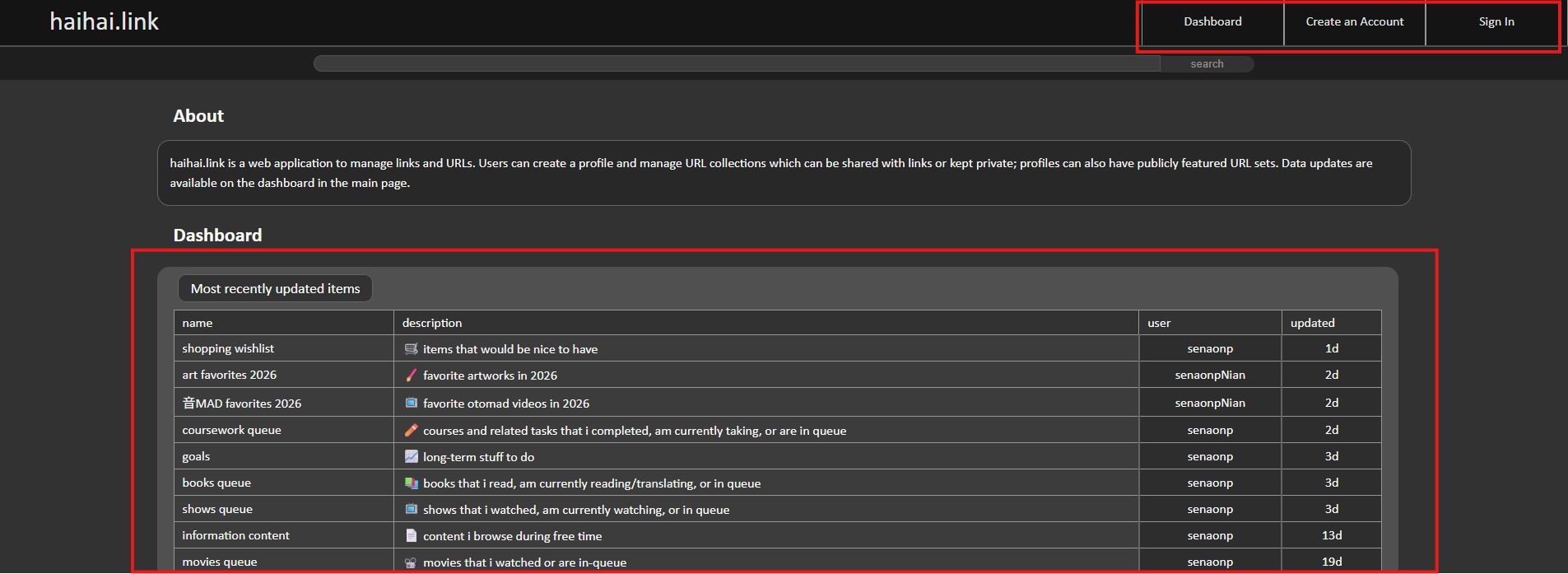
The mainpage view has a top navigation bar for creating accounts, logging in, and going to the dashboard
The primary content is in the Dashboard section which starts with a collection of most recently updated public URL collections
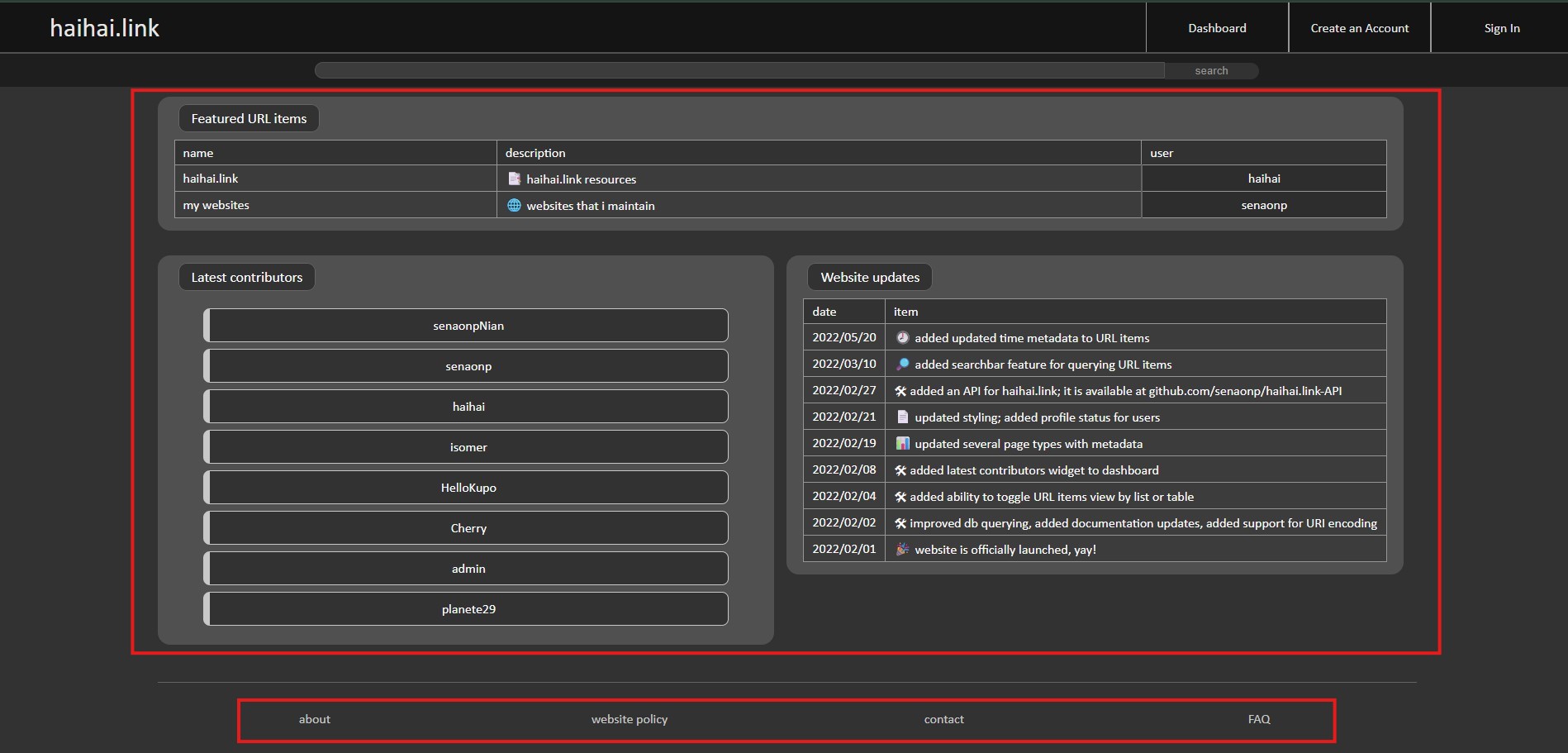
 On the section below are 3 widgets for featured URL items (managed by the administrator), latest contributors (based on most recently updated public URL collections), and website updates (managed by administrator)
If the URL collection is set to public, you will be able to select and view the URL collection's content. Additionally, you can view any user's profile but cannot view private URL collections
On the footer section are links to the about page, website policy, contact page, and frequently asked questions (FAQ)
account user guide
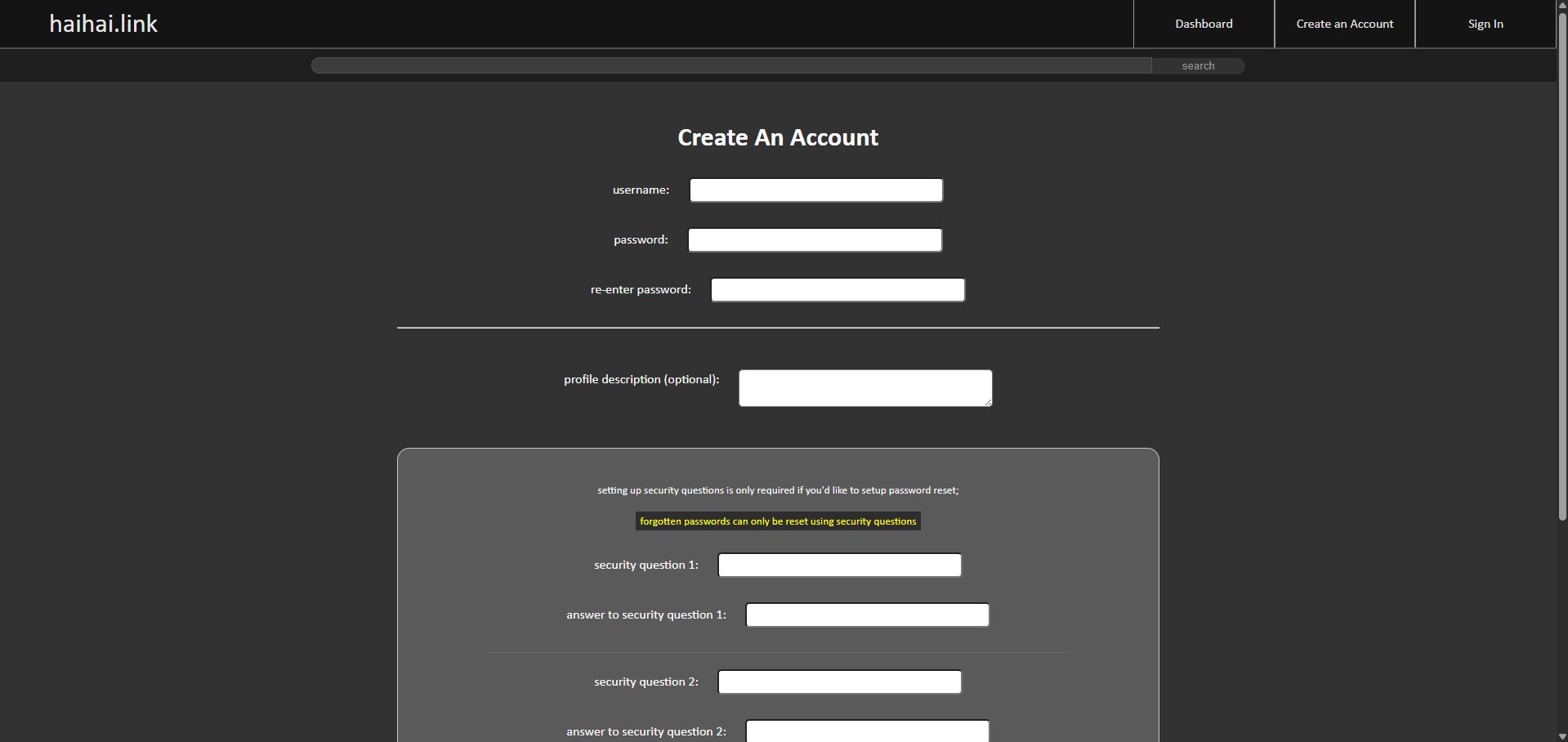
Creating an account can be done by clicking the "Create an Account" tab on the top navigation bar which will direct to a form to fill out info for creating an account.
Note: since the only account requirements are to set a username, password, and to acknowledge the website policy, no personal information is collected, so accounts can only be recovered using security questions (as the administrator cannot verify account owners).
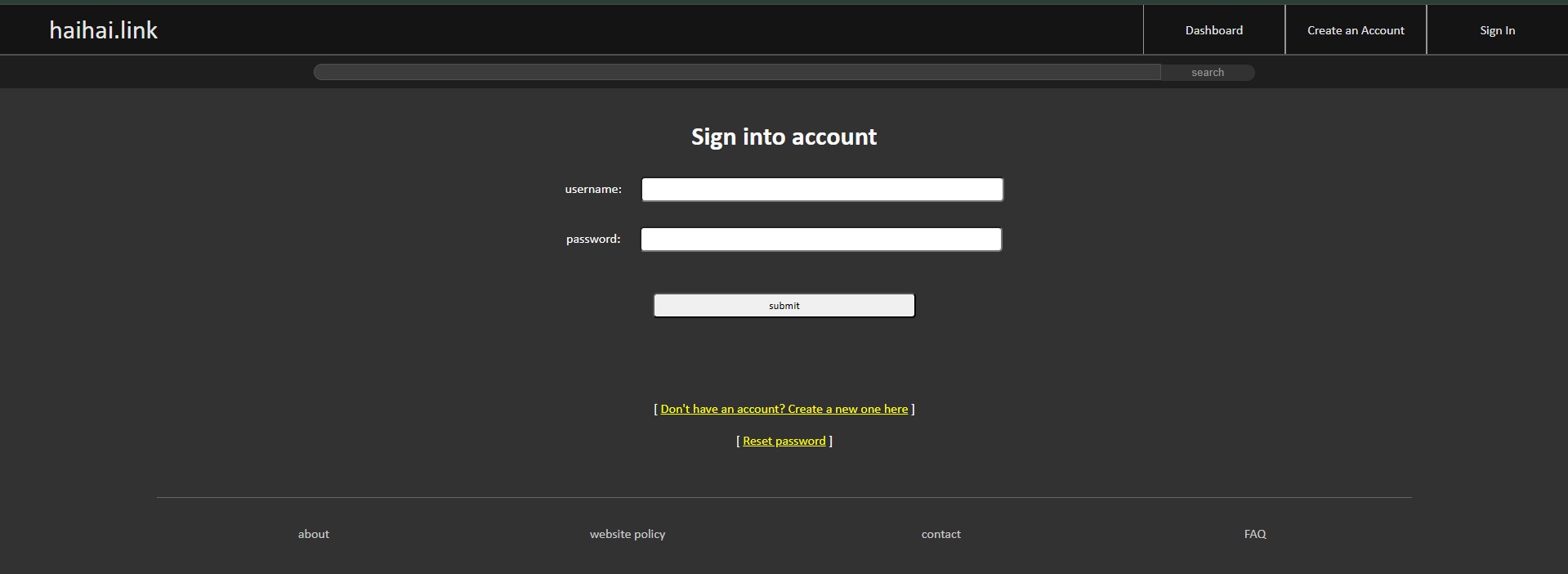
 After creating an account, users can go to the "Sign In" tab and enter the account's username and password to access the webapp's features.
there is also a "[ Reset password ]" link that will redirect to a form to verify account info based on security questions. Completing the form successfully will allow the user access back to their account. If an account does not have security questions setup, the form will note this.
 Once signed into the account successfully, the user will be directed to the "URL Collections" view where they can see any current URL collections they manage. From here, there is a link to "create a new URL collection".
The top navigation bar will update to reflect the signed-in status as there are now "URL collections", "View Profile", "Manage Account", and "Sign Out" tabs.
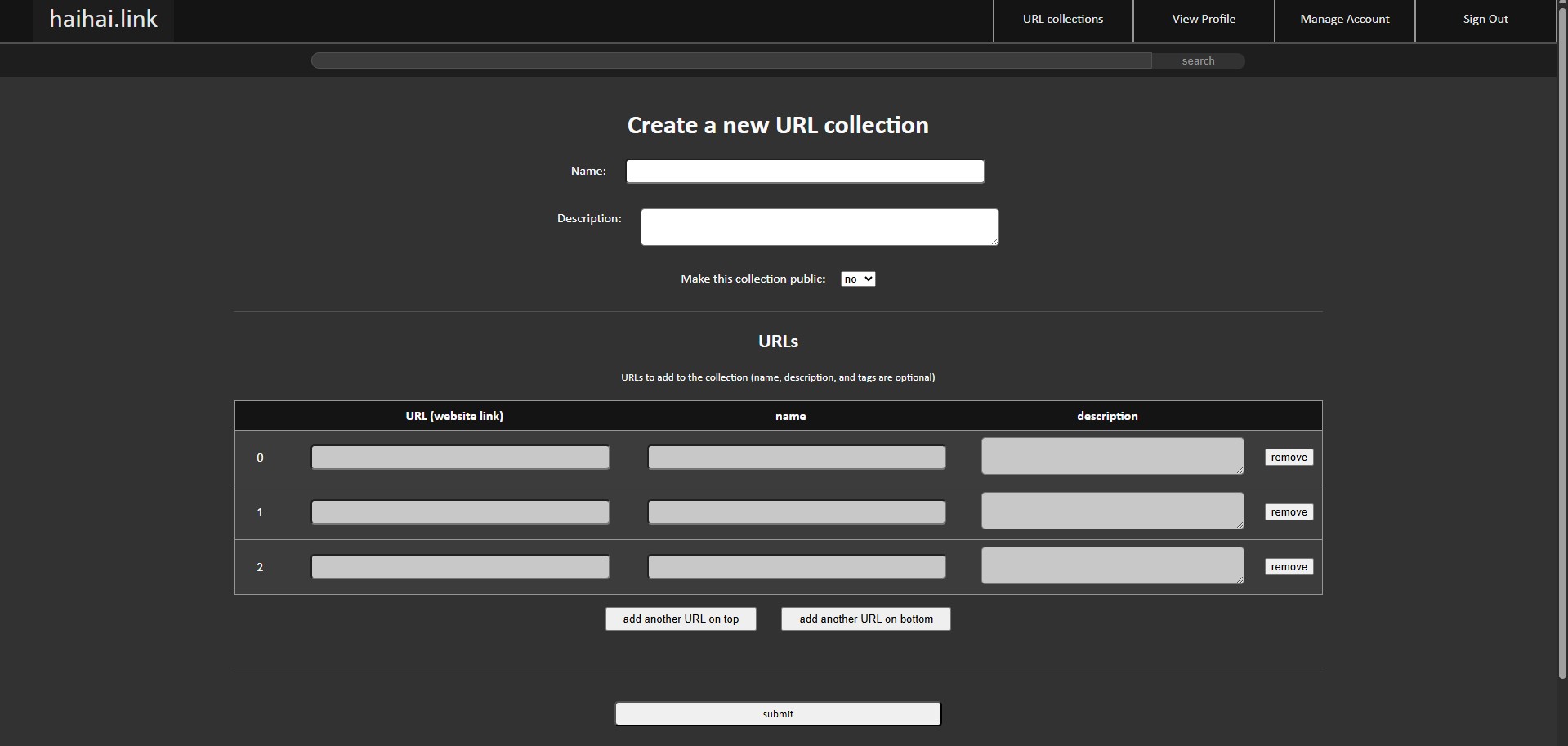
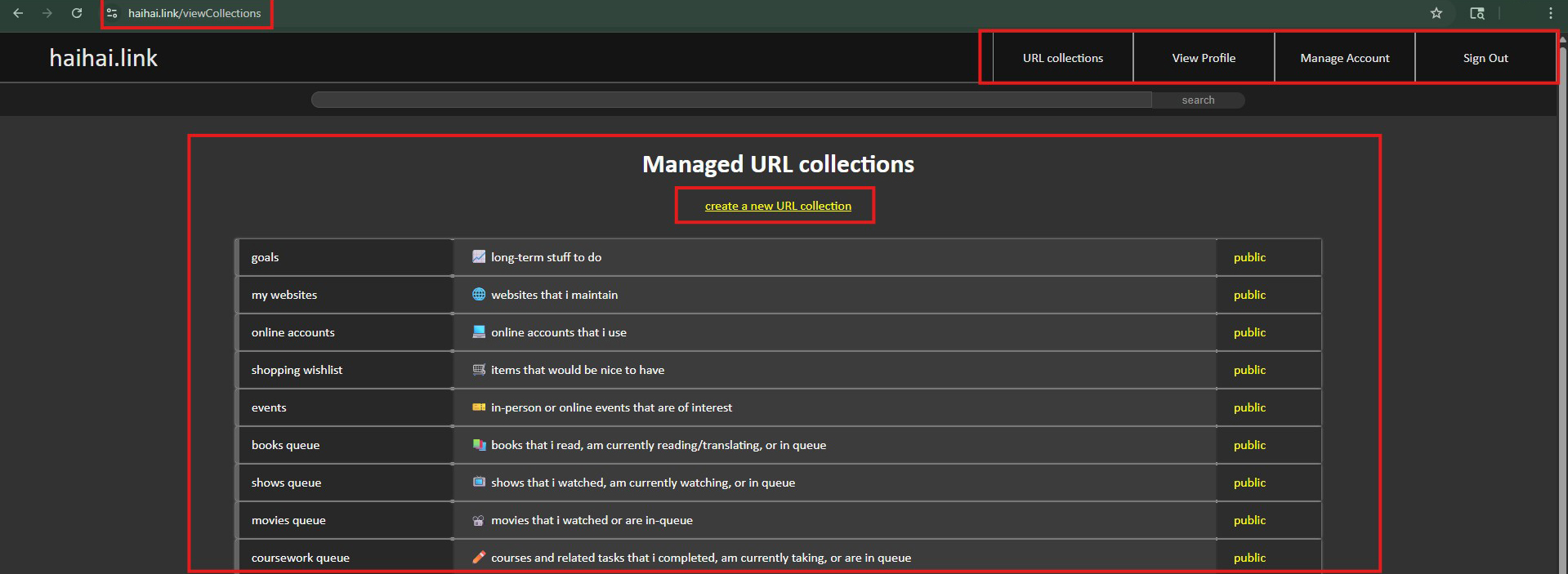 Selecting the "create a new URL collection" link will direct to a form to create a new URL collection. If more URLs need to be added, there are 2 buttons on the form: "add another URL on top" and "add another URL on bottom" which will add a new set of URL fields to the corresponding location on the list.
Note: the "Make this collection public" dropdown field determines the visibility of the URL collection for users. A "yes" value will allow any user (whether or not they have an account) to view the data content in the URL collection and a "no" value will not make the URL content viewable to other users (only the owner can view the URL collection).
Note 2: If a URL collection is public and then set to not public, the name and description will still be visible on the dashboard if it was part of the "Most recently updated items"; however, if any user aside from the owner tries to view the URL collection they will receive a notice that the URL collection is not available for viewing. Likewise if a user had a link to the URL collection when it was public but is no longer public and they try to access the link, they will receive the same notice that it is no longer available for viewing.
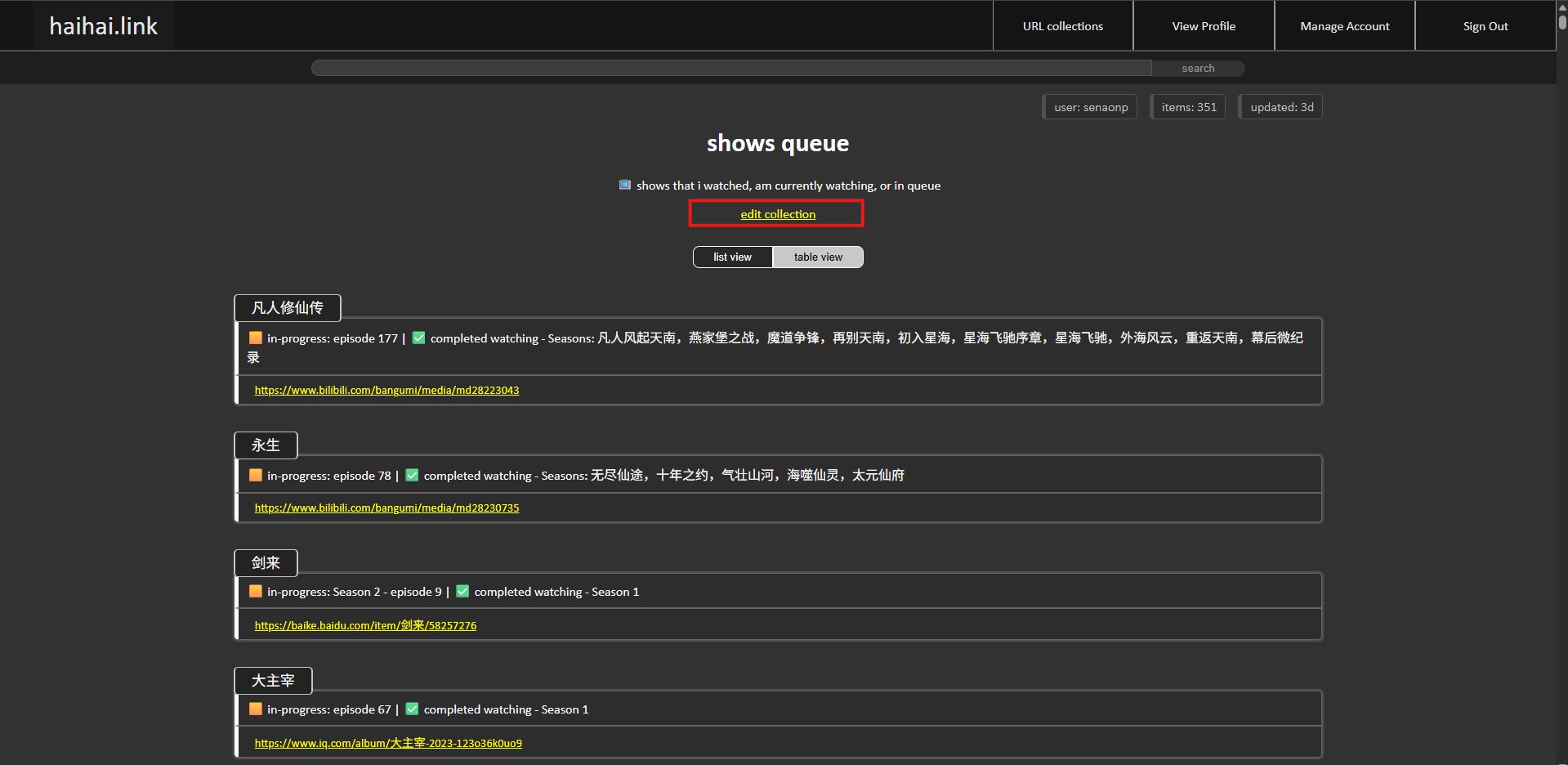
 Selecting a URL collection will bring up the URL collection data. If you are the owner of the URL collection, there will be a link displayed called "edit collection" where you can update the URL collection.
 Example screenshot of updating a URL collection.
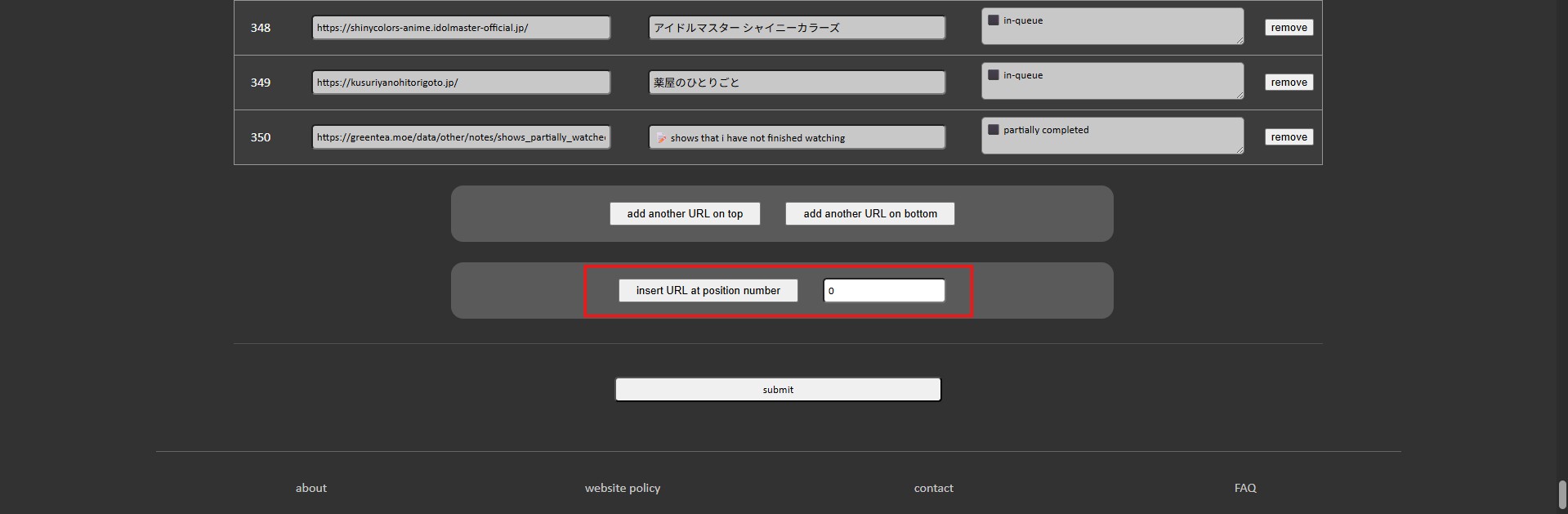
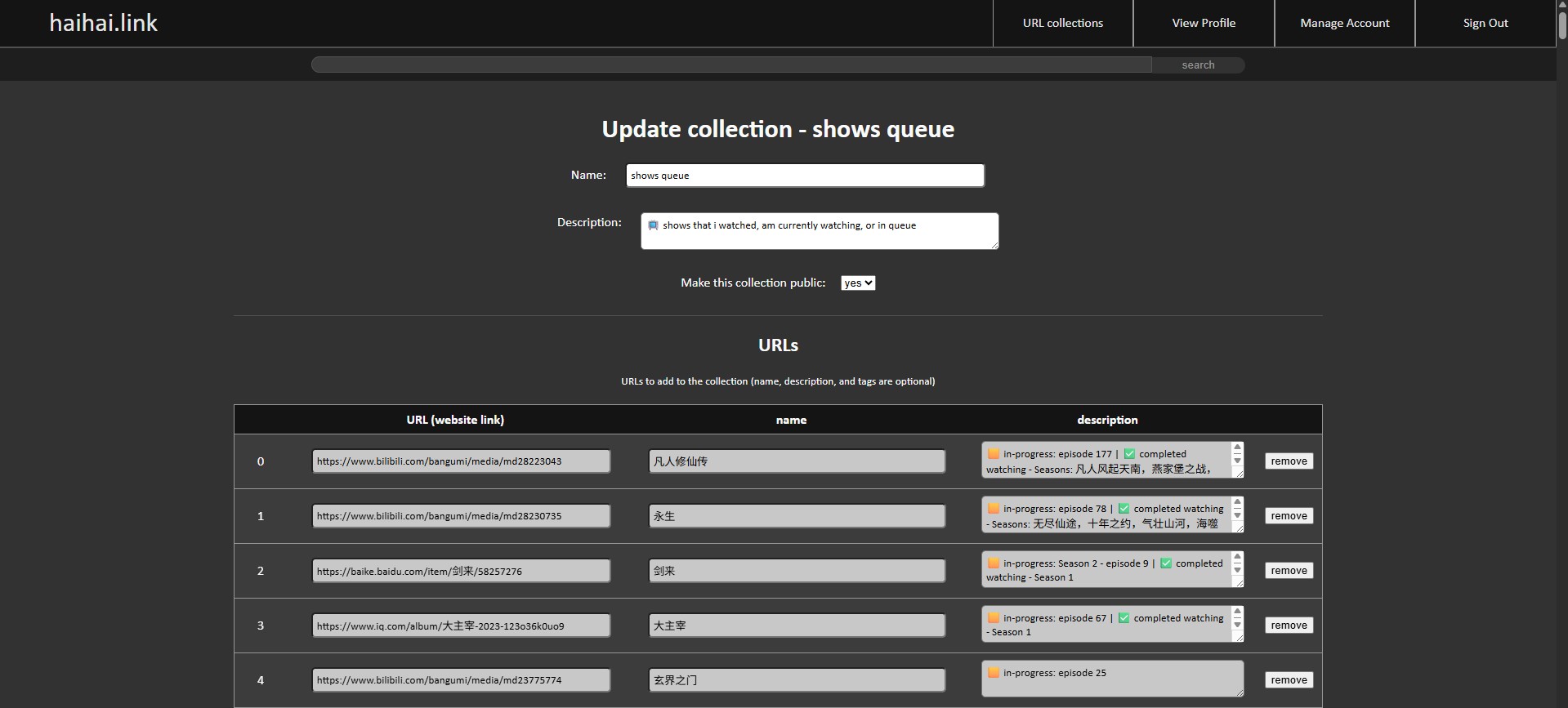 Tip: on the update URL collection view, there are button and number fields to "insert URL at position number". For large URL collection lists, you can insert a field at the position specified by the number field and clicking on the button.
Example: I would like to insert a new URL field set at position 158 (the position is indicated by the numbers in the leftmost column); in that case, I would enter "158" in the number field and then click the "insert URL at position number" button and it will insert a new URL field set at that location.
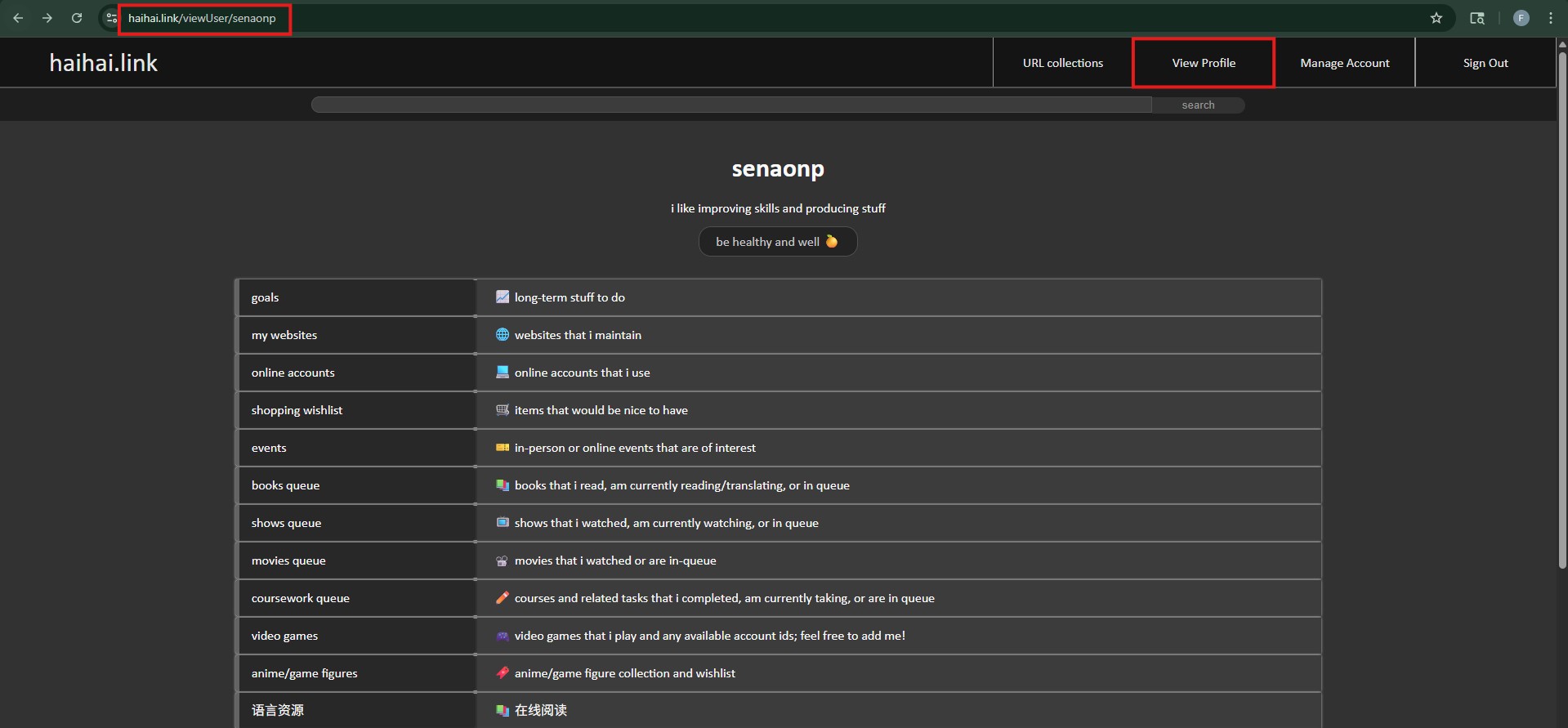
 Clicking the "View Profile" tab on the top navigation bar will direct to a view of the profile information including any public URL collections. This view is what any user can see when they view your profile. Additionally, the link associated with this profile page is publicly available as well (example: my profile link is https://haihai.link/viewUser/senaonp).
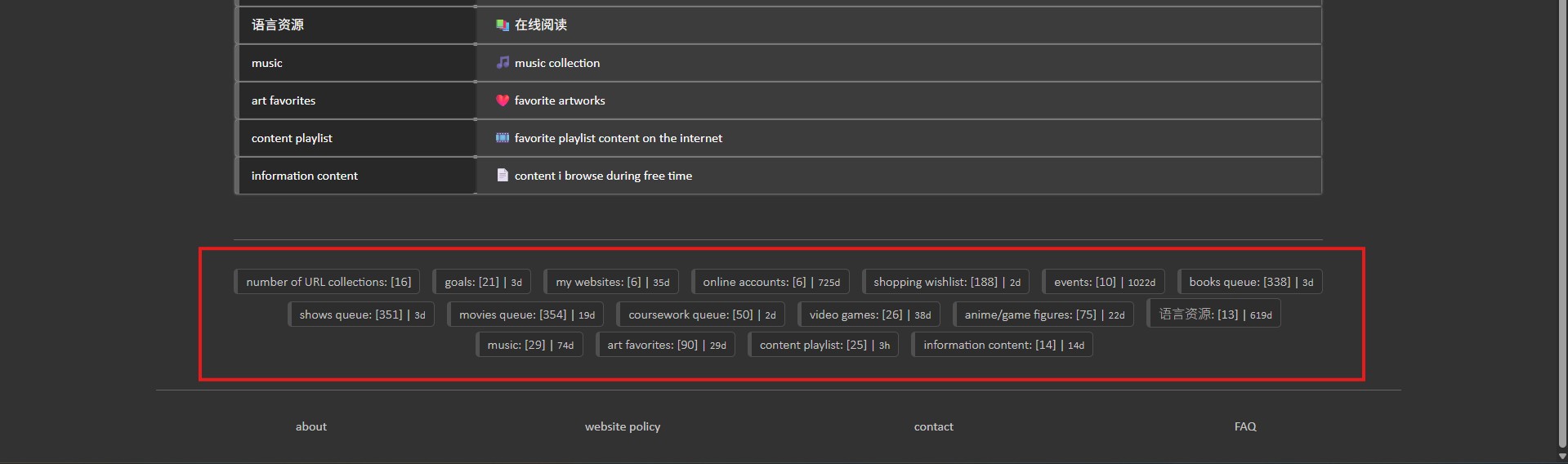
 On the bottom of the "View Profile" view is an inline list of the URL collections with the corresponding number of URLs in the collection in brackets and the period in which the URL collection was last updated.
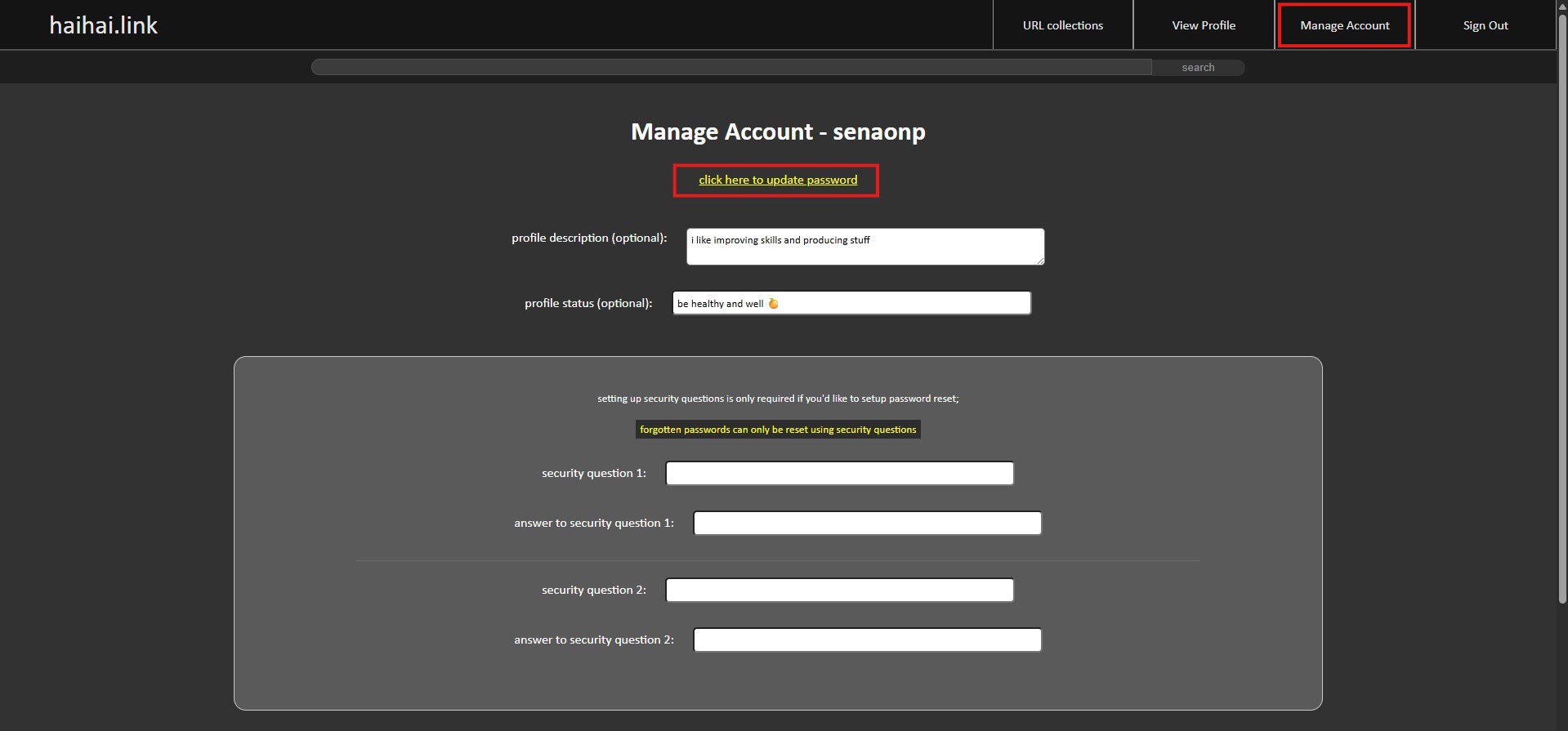
 Selecting the "Manage Account" tab will allow the user to update their profile information. A link to update the user's password is available under "click here to update password".
 On the bottom of the "Manage Account" view is a link to "Delete Account"
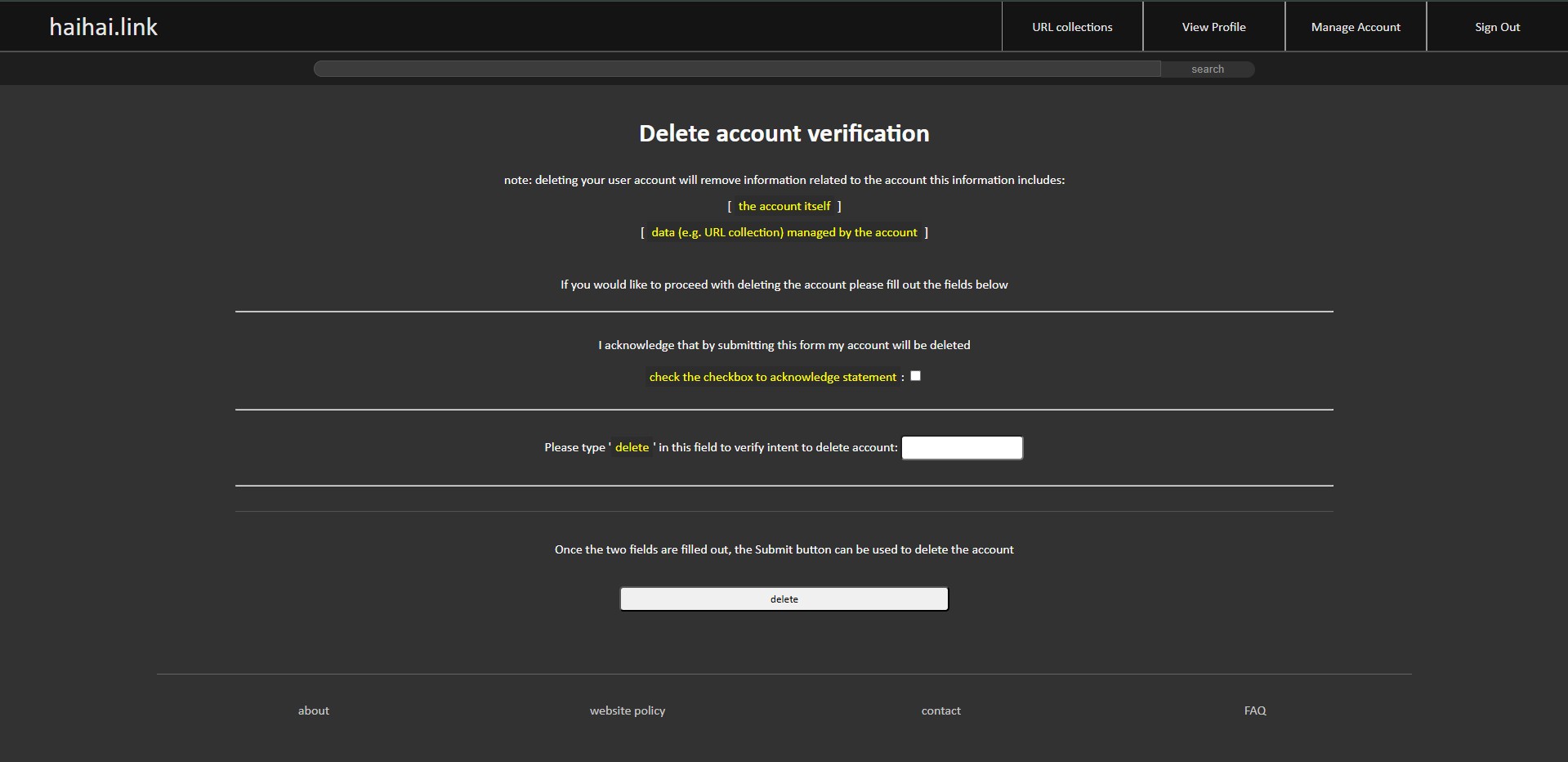
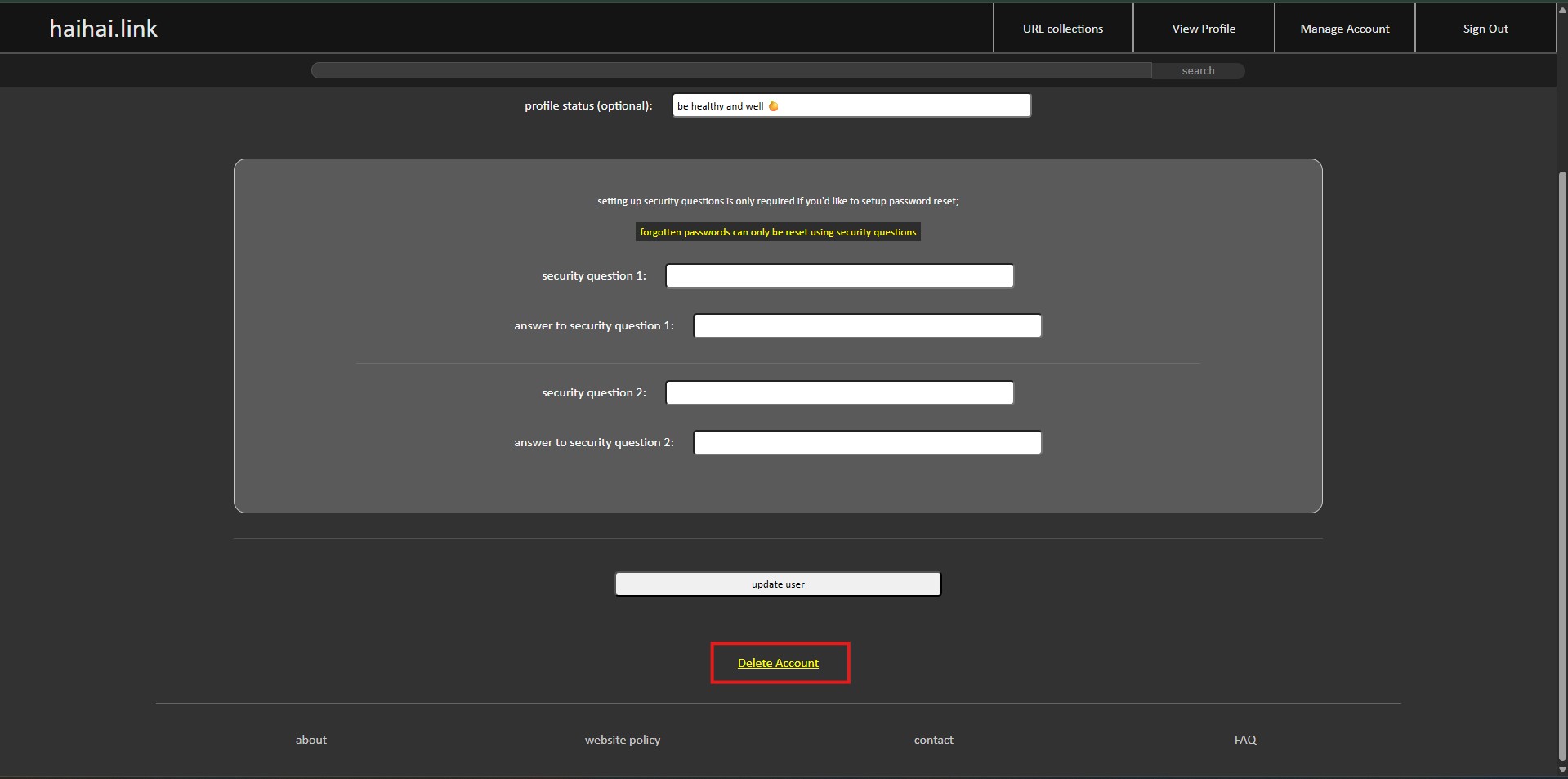 Selecting the link to delete the account will direct to a verification page which once submitted will delete data associated with the account.
 For any questions or suggestions on this documentation, feel free to send an email either to the one on my personal website or on the contact page on haihai.link.